Blog ·
Walkthrough: running a line with Queue
A morning with Queue, from an empty dashboard to a line being served. The customer’s half needs no app and no account; the staff half runs on whatever screens the shop already has.
Every screen below is shown with sample data — a made-up clinic and salon, not anybody’s real queue.
1. Set the business up
Sign in with a Google account: there is no password to set, and none to share between the people who work the counter. The signup form is short, and the business address fills itself in from the location you pick during setup.
2. Put the queue on the door
The door screen opens on any spare tablet from a single link. It has one button on it, which is the correct number of buttons for a screen that faces the public.
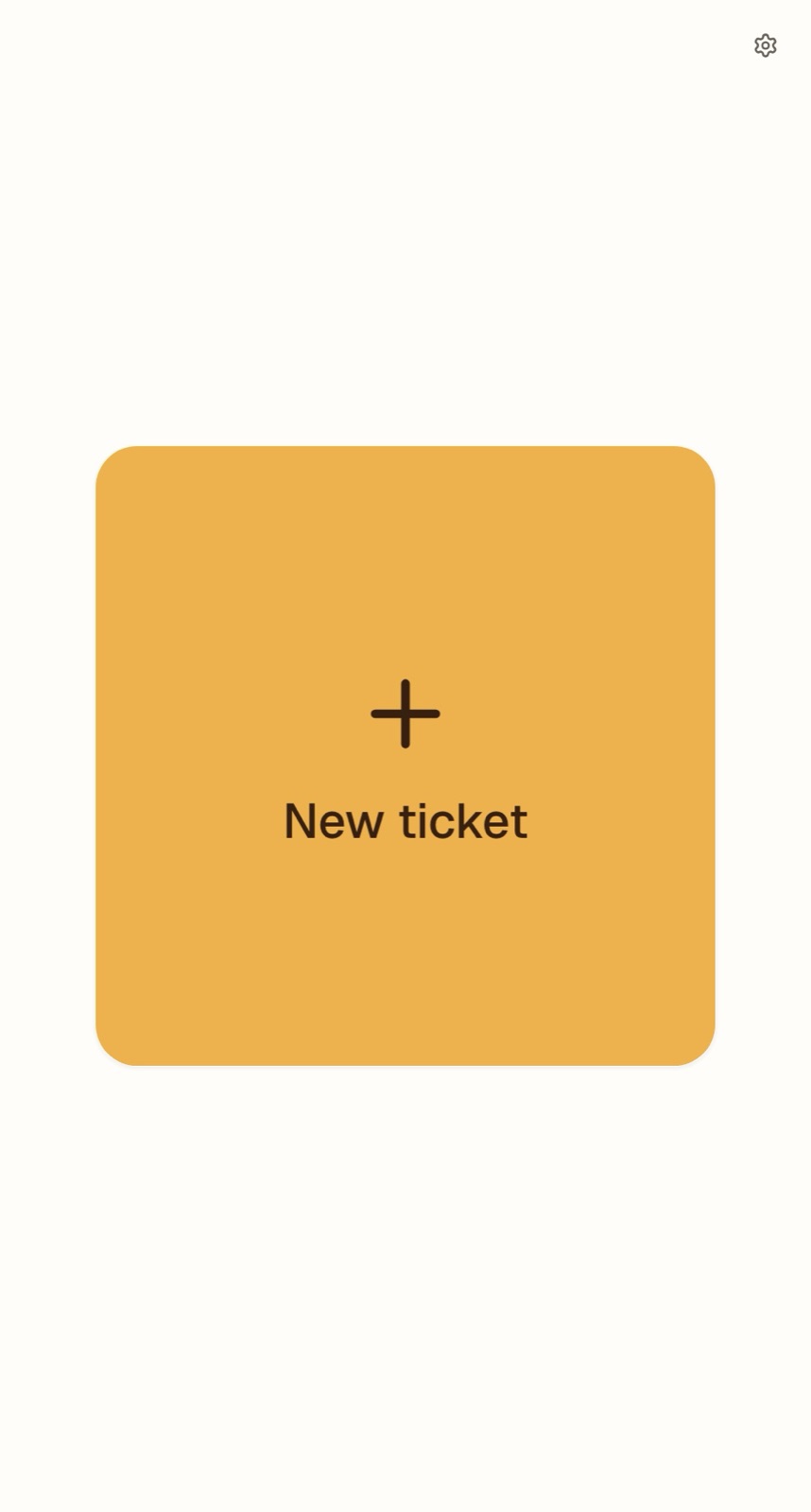
The door screen. One button, and a settings gear for staff.
It also shows a QR code, so anyone with a phone can join themselves without touching the tablet at all. For a wall or a window, the QR poster prints straight from the dashboard.
3. For the people without a phone
The same screen prints a paper ticket, on a Bluetooth thermal printer or from the browser.
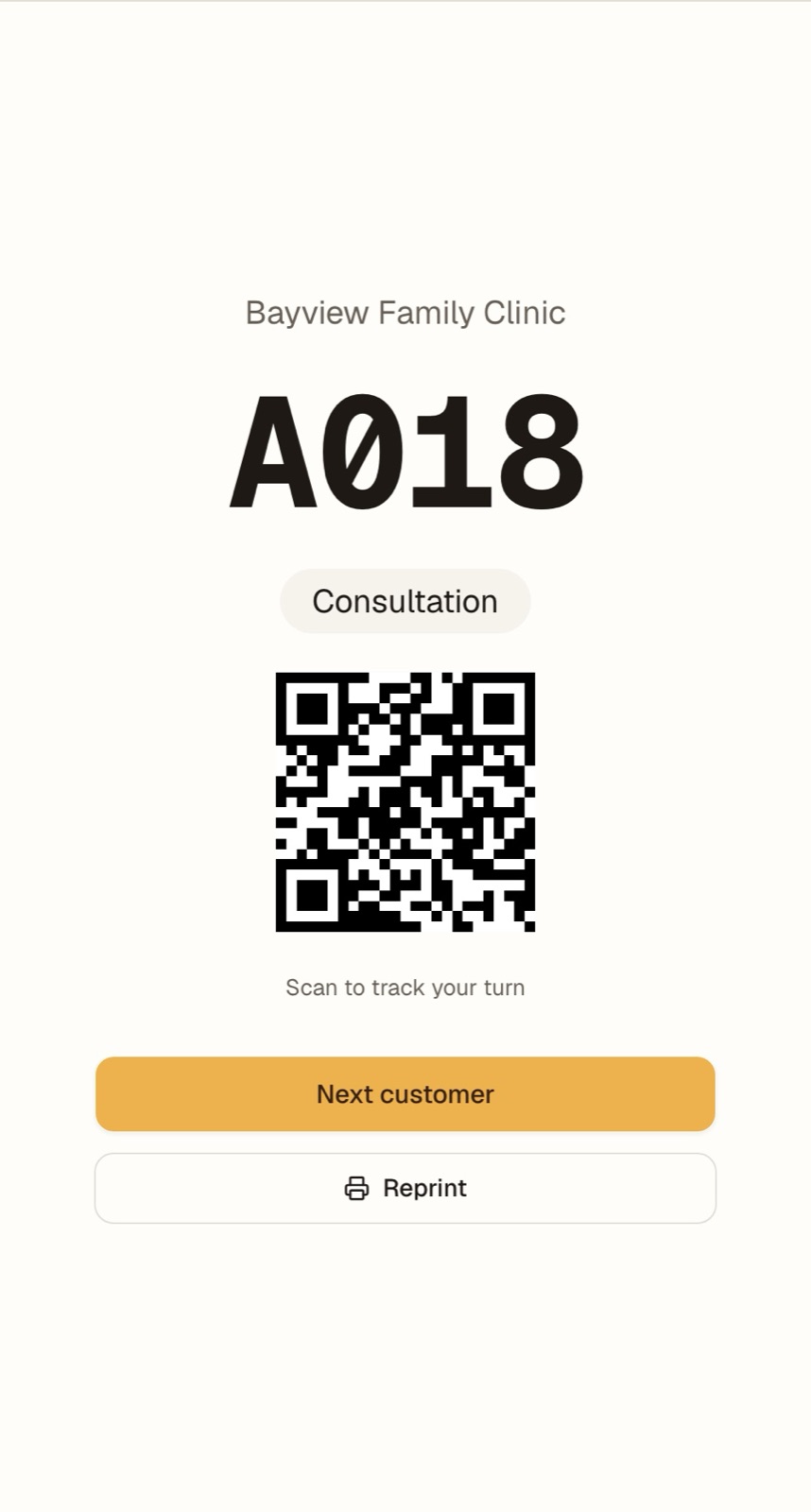
The ticket carries a code of its own, so somebody who took a paper number can still follow the line on a phone if they change their mind.
4. The customer joins
They scan, the browser opens, they are in. No download, no account, no password invented for a shop they are standing inside. Their phone shows the number being served, how many are ahead, and roughly how long that means.
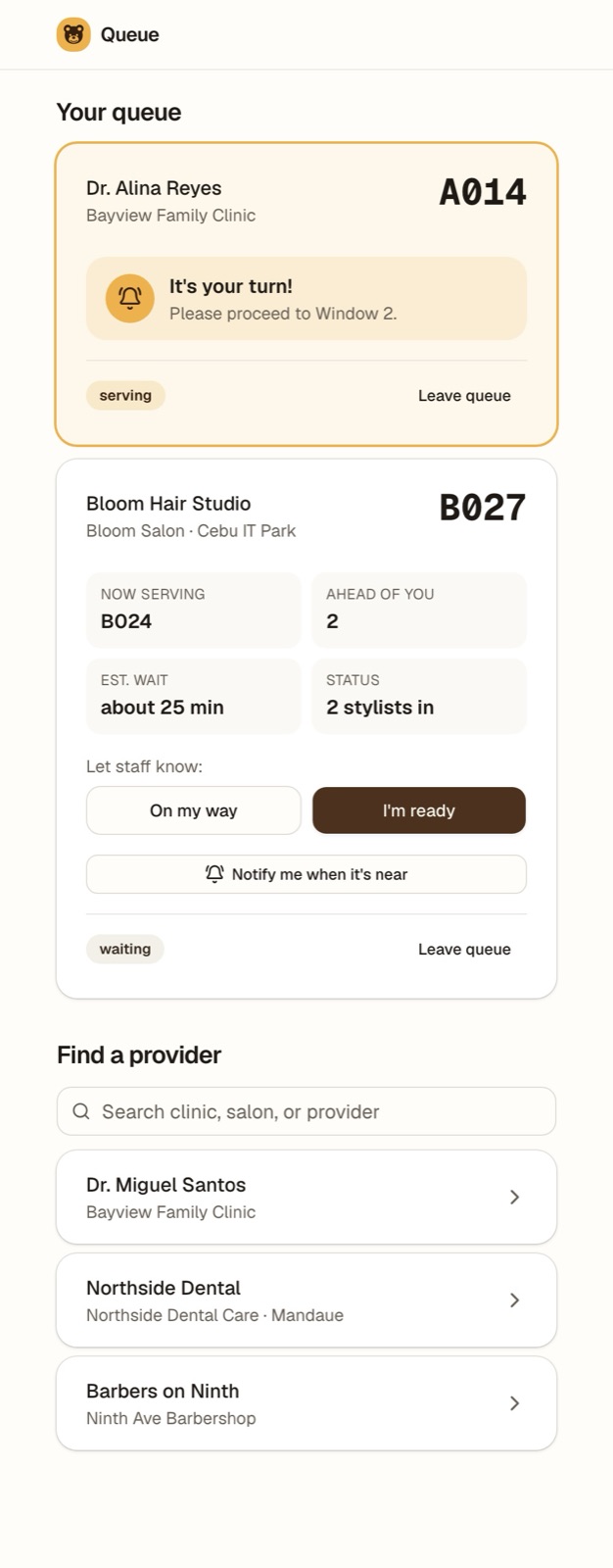
A customer can be in more than one line at once. Staff see who has said they are on the way and who is ready.
5. Serving
The counter screen is the staff view: who is next, who is waiting, who was skipped, and one primary button that completes the current customer and calls the following one.
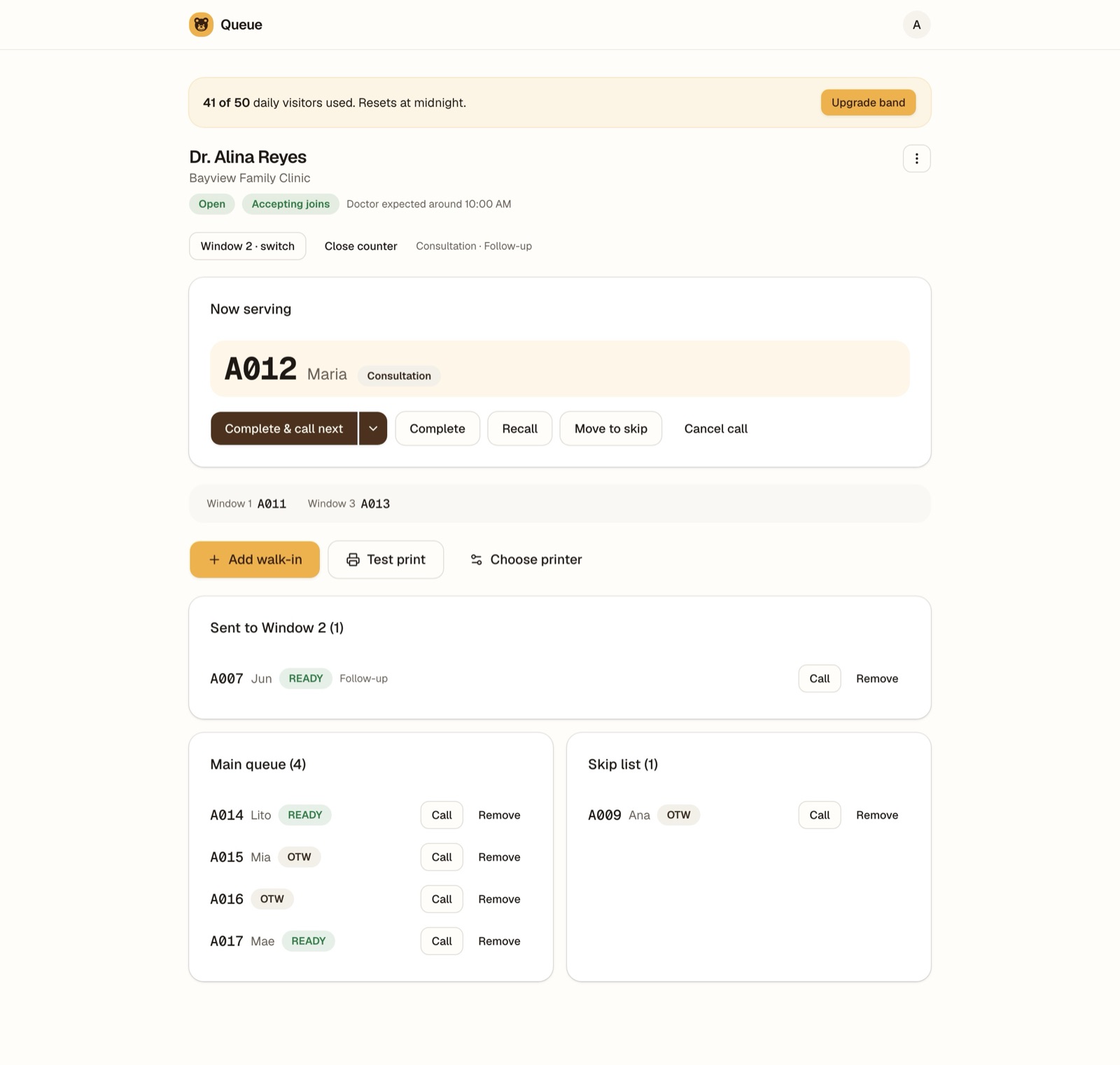
Several counters serve from the same line at once — the strip under the primary button shows what the other windows are on. Staff can add a walk-in who arrived without a phone, and anything that cannot be undone asks first.
6. The room agrees
A TV pairs to the queue with a short code, typed from the remote into a short address, which is the one interaction a television remote is good at.
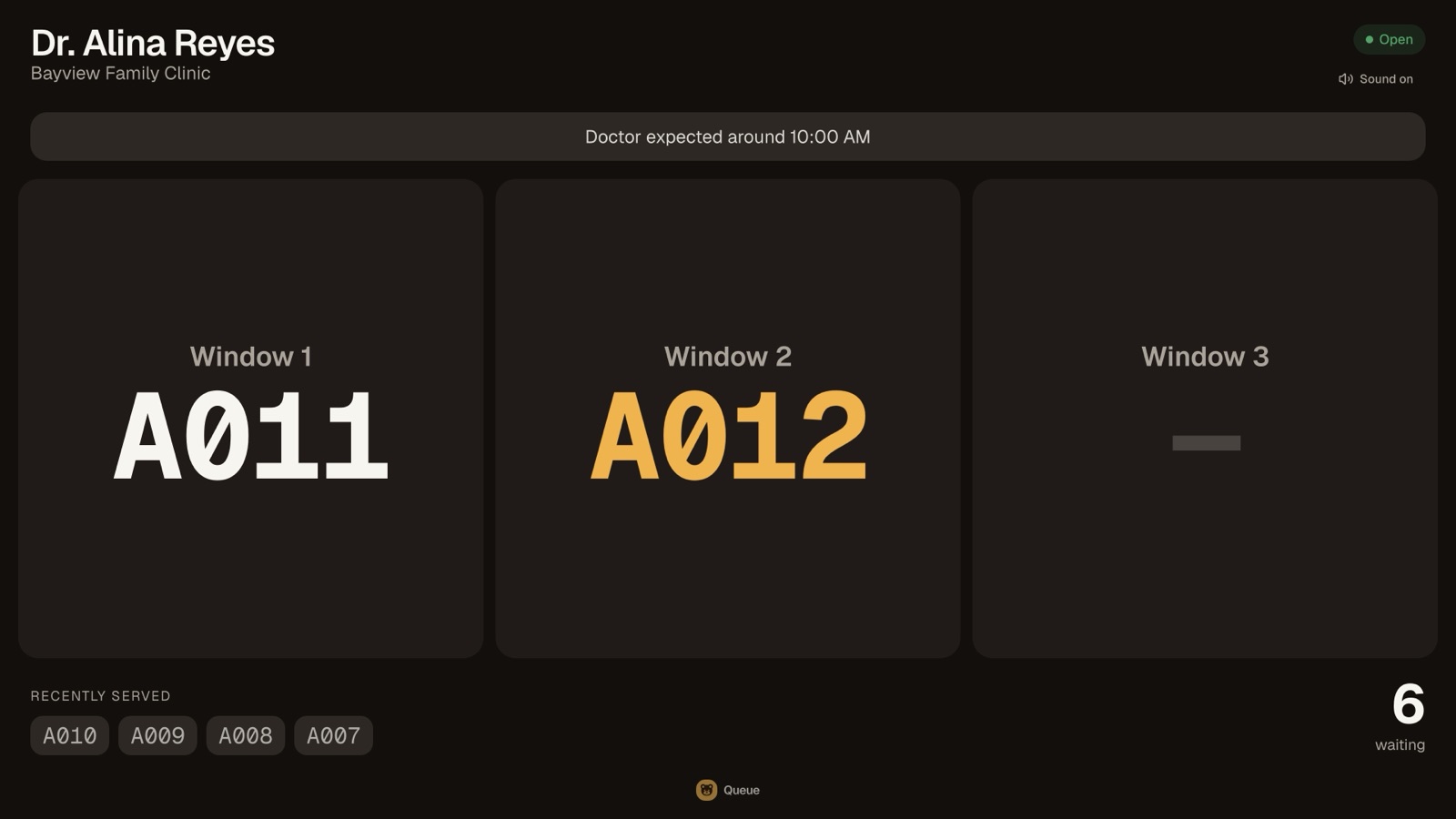
From here on the wall, the door, the counter and every phone in the room are showing the same line. That agreement is the product; the rest is arrangement.
7. Afterwards
Owners can see the tickets their queue has issued over time. Anyone can report a problem from inside the app, which is where a good share of the changelog comes from.